> ## Documentation Index
> Fetch the complete documentation index at: https://docs.calbudget.com/llms.txt
> Use this file to discover all available pages before exploring further.
# Using The Calendar
> Navigate the calendar, review daily balances, search transactions, and adjust your plan.
The calendar is the main planning surface in CalBudget. It shows what is scheduled, what has cleared, and how each day changes the account balance.
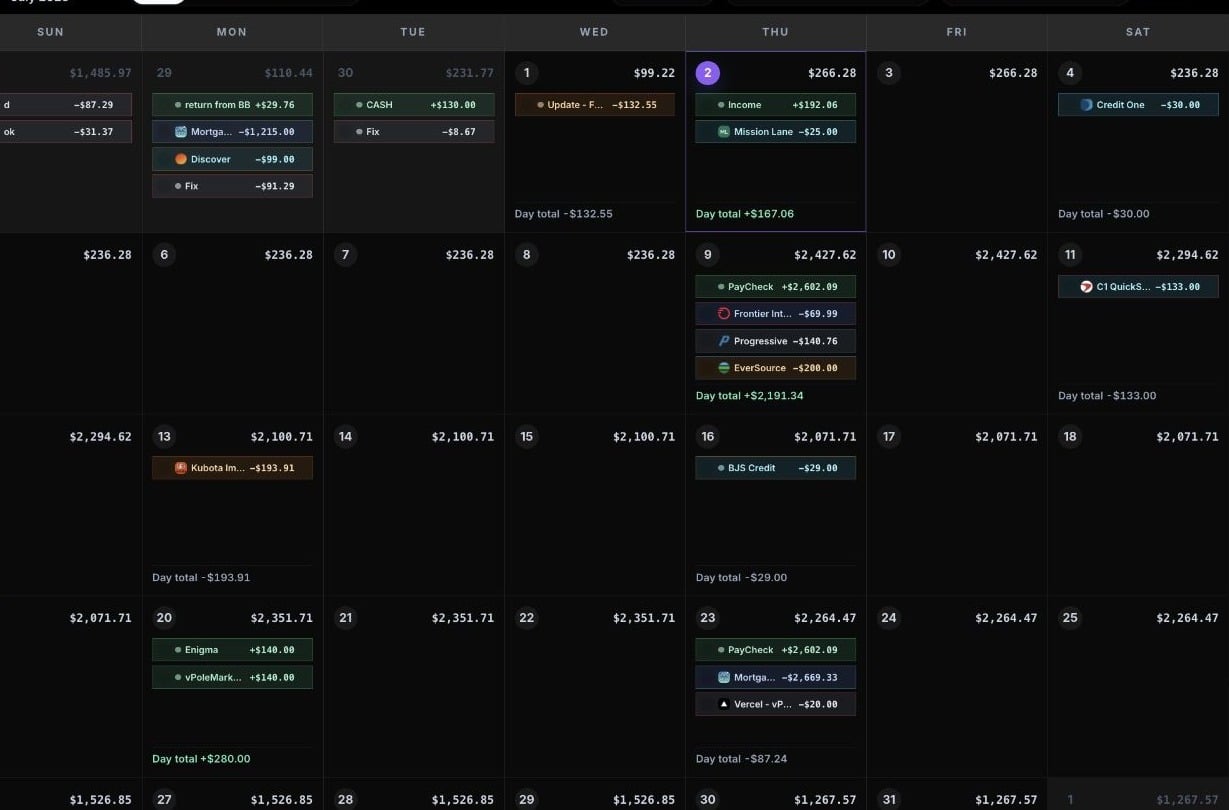 The projected account balance after that day's income and expenses are applied.
Planned and recurring transactions that explain why the daily balance changes.
The fastest way to spot dates that need attention before the month gets tight.
## Choose an account
Use the account selector to switch between accounts. Each account has its own transactions, running balance, and forecast.
When you change accounts, the calendar reloads the month for that account. Use this when you want to focus on checking, savings, a credit card payoff account, or another specific planning account.
## Move through time
Use calendar navigation to move between months. The calendar keeps nearby months ready so you can move forward or back while planning.
Future months are especially useful after you add recurring transactions, because bills and income continue to appear beyond the current month.
## Read the daily balance
Each date shows the transactions scheduled for that day and the projected balance after those transactions are included.
Income increases the balance. Expenses and uncategorized transactions decrease it. If a balance looks wrong, check for:
* A missing paycheck or transfer.
* A bill on the wrong date.
* An expense entered as income, or income entered as an expense.
* An outdated account balance.
* A duplicate transaction.
If a projected balance looks impossible, check transaction type first. Income should increase the balance, and expenses should lower it.
## Open a day
Select a day to see its transactions. This is helpful when several items land on the same date or when the calendar cell does not show every item at once.
From a day view, you can add another transaction for that date or open an existing transaction to edit it.
## Add from the calendar
You can add a transaction from the main add button or from a specific day. When you add from a day, CalBudget starts the transaction with that date selected.
## Drag to reschedule
Drag a transaction to another date when the plan changes. CalBudget updates the transaction date and recalculates the running balance around it.
Use this for real-world changes like:
* A bill moving to a different due date.
* A paycheck arriving early.
* A planned purchase moving to next week.
* A subscription being charged on a different day than expected.
## Use undo when planning
If you move, create, delete, or toggle a cleared state by mistake, use undo to step back. Keyboard shortcuts can be controlled from settings.
## Search and filter
Use search when you need to find a specific transaction by title. Selecting a search result can take you to the month where that transaction lives and open it for review.
Use category filters when you want to focus on a slice of the calendar, such as income, bills, subscriptions, or flexible spending.
Search is especially helpful for recurring bills. Find the bill, open the occurrence, and confirm whether the date, amount, or recurring schedule needs to change.
## Keep the calendar useful
The calendar works best when it reflects decisions you can actually act on. If a transaction is uncertain, it can still be useful as a planned item. Update it when the amount or date becomes real, and mark it cleared once it is complete.
The projected account balance after that day's income and expenses are applied.
Planned and recurring transactions that explain why the daily balance changes.
The fastest way to spot dates that need attention before the month gets tight.
## Choose an account
Use the account selector to switch between accounts. Each account has its own transactions, running balance, and forecast.
When you change accounts, the calendar reloads the month for that account. Use this when you want to focus on checking, savings, a credit card payoff account, or another specific planning account.
## Move through time
Use calendar navigation to move between months. The calendar keeps nearby months ready so you can move forward or back while planning.
Future months are especially useful after you add recurring transactions, because bills and income continue to appear beyond the current month.
## Read the daily balance
Each date shows the transactions scheduled for that day and the projected balance after those transactions are included.
Income increases the balance. Expenses and uncategorized transactions decrease it. If a balance looks wrong, check for:
* A missing paycheck or transfer.
* A bill on the wrong date.
* An expense entered as income, or income entered as an expense.
* An outdated account balance.
* A duplicate transaction.
If a projected balance looks impossible, check transaction type first. Income should increase the balance, and expenses should lower it.
## Open a day
Select a day to see its transactions. This is helpful when several items land on the same date or when the calendar cell does not show every item at once.
From a day view, you can add another transaction for that date or open an existing transaction to edit it.
## Add from the calendar
You can add a transaction from the main add button or from a specific day. When you add from a day, CalBudget starts the transaction with that date selected.
## Drag to reschedule
Drag a transaction to another date when the plan changes. CalBudget updates the transaction date and recalculates the running balance around it.
Use this for real-world changes like:
* A bill moving to a different due date.
* A paycheck arriving early.
* A planned purchase moving to next week.
* A subscription being charged on a different day than expected.
## Use undo when planning
If you move, create, delete, or toggle a cleared state by mistake, use undo to step back. Keyboard shortcuts can be controlled from settings.
## Search and filter
Use search when you need to find a specific transaction by title. Selecting a search result can take you to the month where that transaction lives and open it for review.
Use category filters when you want to focus on a slice of the calendar, such as income, bills, subscriptions, or flexible spending.
Search is especially helpful for recurring bills. Find the bill, open the occurrence, and confirm whether the date, amount, or recurring schedule needs to change.
## Keep the calendar useful
The calendar works best when it reflects decisions you can actually act on. If a transaction is uncertain, it can still be useful as a planned item. Update it when the amount or date becomes real, and mark it cleared once it is complete.