> ## Documentation Index
> Fetch the complete documentation index at: https://docs.calbudget.com/llms.txt
> Use this file to discover all available pages before exploring further.
# Reports overview
> Use CalBudget reports to review spending, cash flow, timing risk, and budget health from the same calendar data that powers your forecast.
CalBudget reports help you understand what happened, what is scheduled, and which dates deserve attention next. They are built from your accounts, dated transactions, categories, recurring items, and cleared status.
 ## Open reports
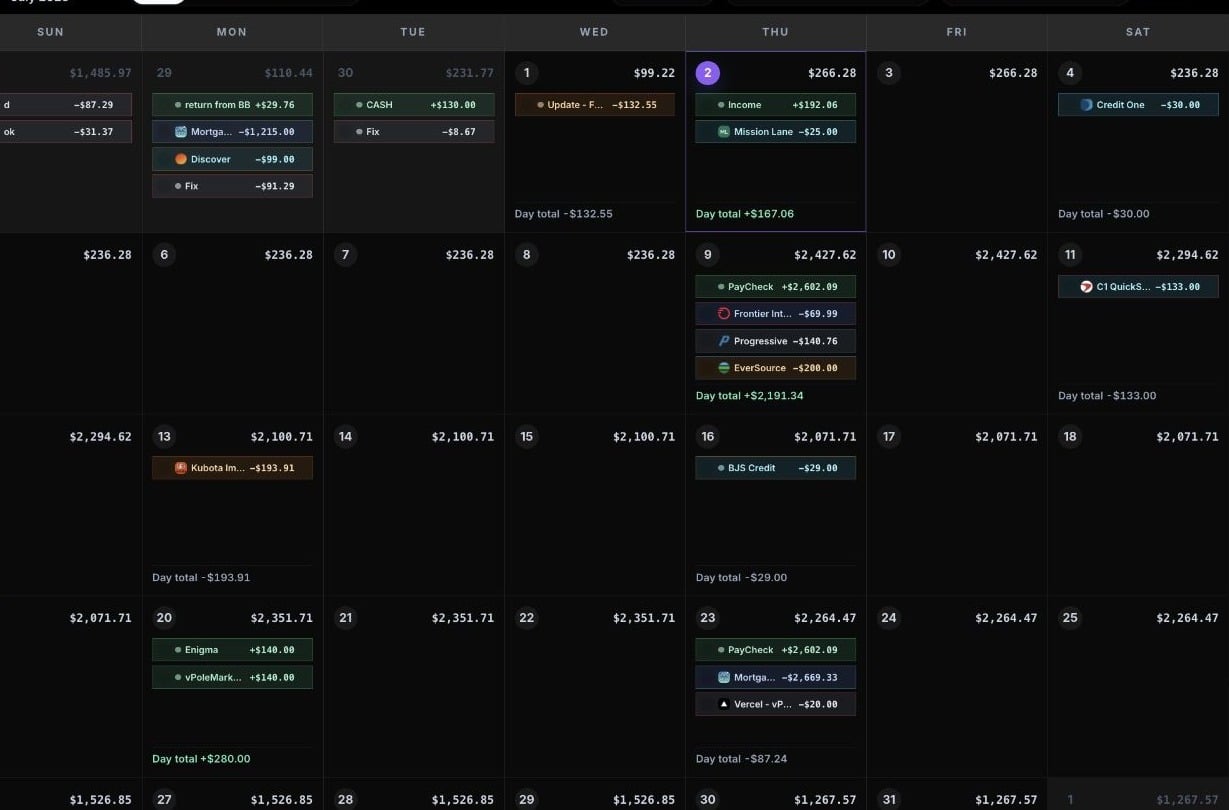
From the calendar, open the reports menu in the top navigation. The menu includes:
* Category Spending for the current month
* Category Trends for the current account
* Category Trends across all accounts
* Recurring Balances
The calendar also includes the Analytics view, which gives a wider report surface for cash-flow and budget-health review.
Use these to understand where income and expenses are grouped this month and across time.
Use this to track repeat deposits, payments, savings movement, debt payments, and other balance progress.
Use the broader dashboard when you want a deeper read on timing risk, concentration, and cash-flow pressure.
Reports point to patterns. The calendar is where you adjust dates, amounts, categories, and recurring schedules.
## Review category spending
Category Spending shows how the current month is split across income and expense categories. Use it when you want to answer questions like:
* Which expense categories are taking the most money this month?
* Is one category unusually high?
* How much income and expense activity is already on the calendar?
If a category looks wrong, edit the underlying transactions or categories. Reports update from the transaction data; they are not separate records.
## Compare category trends
Category Trends helps you compare category totals over time. You can review the current account or all accounts, depending on the report option you choose.
Use trends when you want to see whether a category is becoming a regular pressure point instead of a one-month spike.
## Use Analytics
Analytics is the broader reporting dashboard. It includes report panels for:
* Balance forecast
* Balance pulse
* Cash flow
* Category concentration
* Top expenses
* Recurring load
* Budget health score
* Timing risk
* Budget health radar
* Category load rings
* Cash flow map
* Balance line
Change the date range to review the last 30, 60, or 90 days, or set a custom range. The range controls which transactions and balance points appear in the report.
## Read timing risk
Timing risk looks at dated expenses and the projected balance after those expenses land. This is useful when a bill amount is not the whole problem; the real issue may be the day it clears.
If a timing-risk item looks concerning, go back to the calendar and review nearby paychecks, recurring bills, and planned spending.
Reports work best after you mark posted transactions cleared and keep categories current.
## Understand report limits
Reports are only as complete as the data in your calendar. Missing transactions, incorrect categories, outdated account balances, or uncleared items can make a report less useful.
CalBudget reports are planning tools. They can help you spot patterns and timing pressure, but they are not financial, tax, legal, or investment advice.
## Open reports
From the calendar, open the reports menu in the top navigation. The menu includes:
* Category Spending for the current month
* Category Trends for the current account
* Category Trends across all accounts
* Recurring Balances
The calendar also includes the Analytics view, which gives a wider report surface for cash-flow and budget-health review.
Use these to understand where income and expenses are grouped this month and across time.
Use this to track repeat deposits, payments, savings movement, debt payments, and other balance progress.
Use the broader dashboard when you want a deeper read on timing risk, concentration, and cash-flow pressure.
Reports point to patterns. The calendar is where you adjust dates, amounts, categories, and recurring schedules.
## Review category spending
Category Spending shows how the current month is split across income and expense categories. Use it when you want to answer questions like:
* Which expense categories are taking the most money this month?
* Is one category unusually high?
* How much income and expense activity is already on the calendar?
If a category looks wrong, edit the underlying transactions or categories. Reports update from the transaction data; they are not separate records.
## Compare category trends
Category Trends helps you compare category totals over time. You can review the current account or all accounts, depending on the report option you choose.
Use trends when you want to see whether a category is becoming a regular pressure point instead of a one-month spike.
## Use Analytics
Analytics is the broader reporting dashboard. It includes report panels for:
* Balance forecast
* Balance pulse
* Cash flow
* Category concentration
* Top expenses
* Recurring load
* Budget health score
* Timing risk
* Budget health radar
* Category load rings
* Cash flow map
* Balance line
Change the date range to review the last 30, 60, or 90 days, or set a custom range. The range controls which transactions and balance points appear in the report.
## Read timing risk
Timing risk looks at dated expenses and the projected balance after those expenses land. This is useful when a bill amount is not the whole problem; the real issue may be the day it clears.
If a timing-risk item looks concerning, go back to the calendar and review nearby paychecks, recurring bills, and planned spending.
Reports work best after you mark posted transactions cleared and keep categories current.
## Understand report limits
Reports are only as complete as the data in your calendar. Missing transactions, incorrect categories, outdated account balances, or uncleared items can make a report less useful.
CalBudget reports are planning tools. They can help you spot patterns and timing pressure, but they are not financial, tax, legal, or investment advice.