

Plans and subscription checkout
CalBudget Business is separate from these consumer plans. Business workspaces, billing, verification, and data live in the CalBudget Business product lane.
Plan summary
Free
Start a core calendar forecast with 1 budget account, 50 lifetime transactions, 5 recurring series, and 3 bookmarks.
Plus
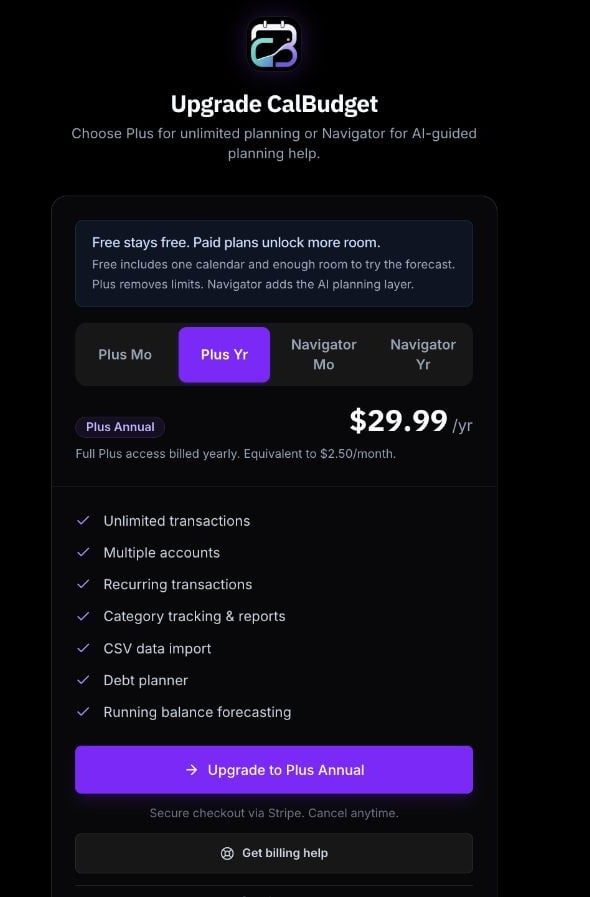
Use unlimited accounts, transactions, categories, recurring series, and bookmarks. Plus also includes imports, reports, and debt payoff planning.
Navigator
Includes everything in Plus, plus Navigator recommendations, chat, weekly cash-flow checkups, action plans, due-step reminders, shared access, and voice commands.
Prices shown in CalBudget
Annual Plus is equivalent to about $2.50 per month. Navigator Annual is for users who want ongoing planning help and saved checkup/action history.
Choose Plus when
You want the full planning workspace: unlimited accounts, transactions, categories, recurring schedules, imports, reports, and debt payoff tools.
Choose Navigator when
You want Plus plus guided planning help, checkups, action plans, reminders, shared access, and voice commands.
What happens on Free
Free is meant for getting a real forecast started. When you reach a Free limit, CalBudget will ask you to upgrade before adding more of that item. Free limits are:- 1 budget account
- 50 lifetime transactions
- 5 recurring series
- 3 bookmarks
Manage a website subscription
Website subscriptions are billed through Stripe.1
Open Settings
From the calendar, open the profile menu and choose Settings.
2
Go to Billing
Open the Billing tab.
3
Manage subscription
Choose Manage subscription to open the billing portal for renewal dates, payment method changes, invoices, cancellation, or plan changes.
/billing; CalBudget redirects that page to the current subscription screen.